
Bulk Actions (Invite All, Remind All ...)
Welcome to our guide on managing event invites in the TempoTrip system! Here, we’ll walk you through the different statuses for travelers, how to send invites and reminders, and the various bulk actions you can take to streamline your event management process. Let’s dive in!
Sending Initial Event Invites and Reminders
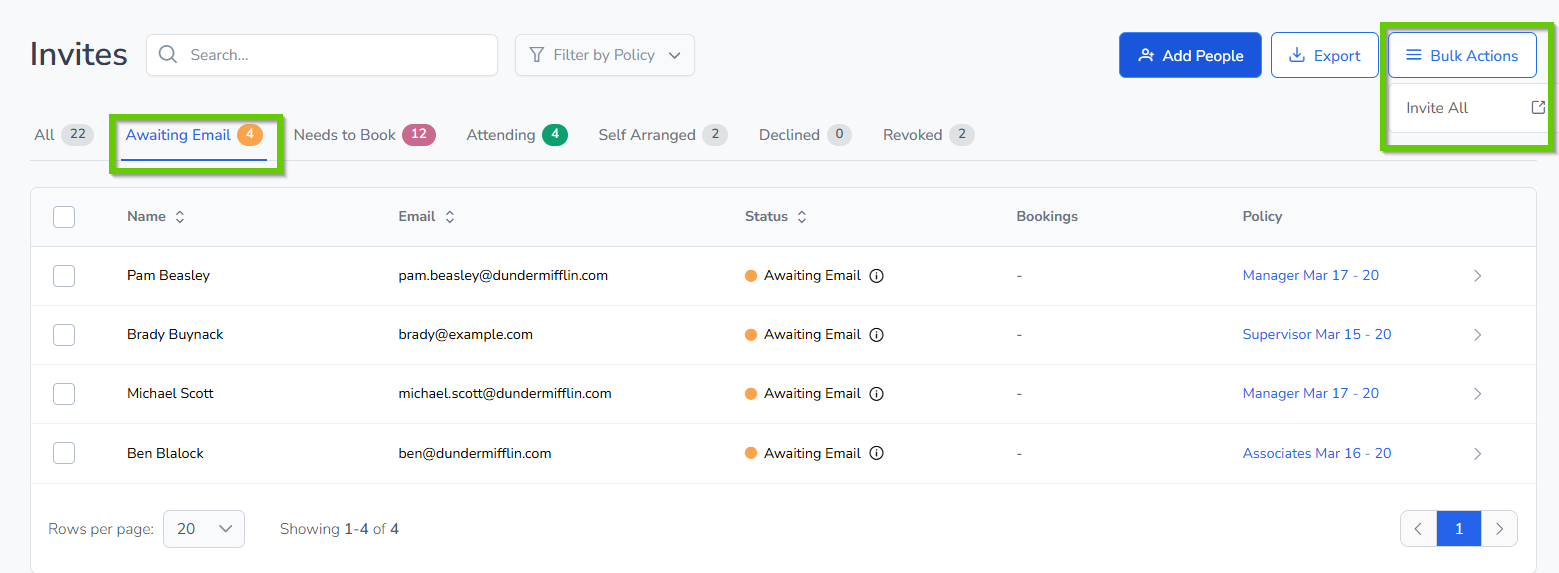
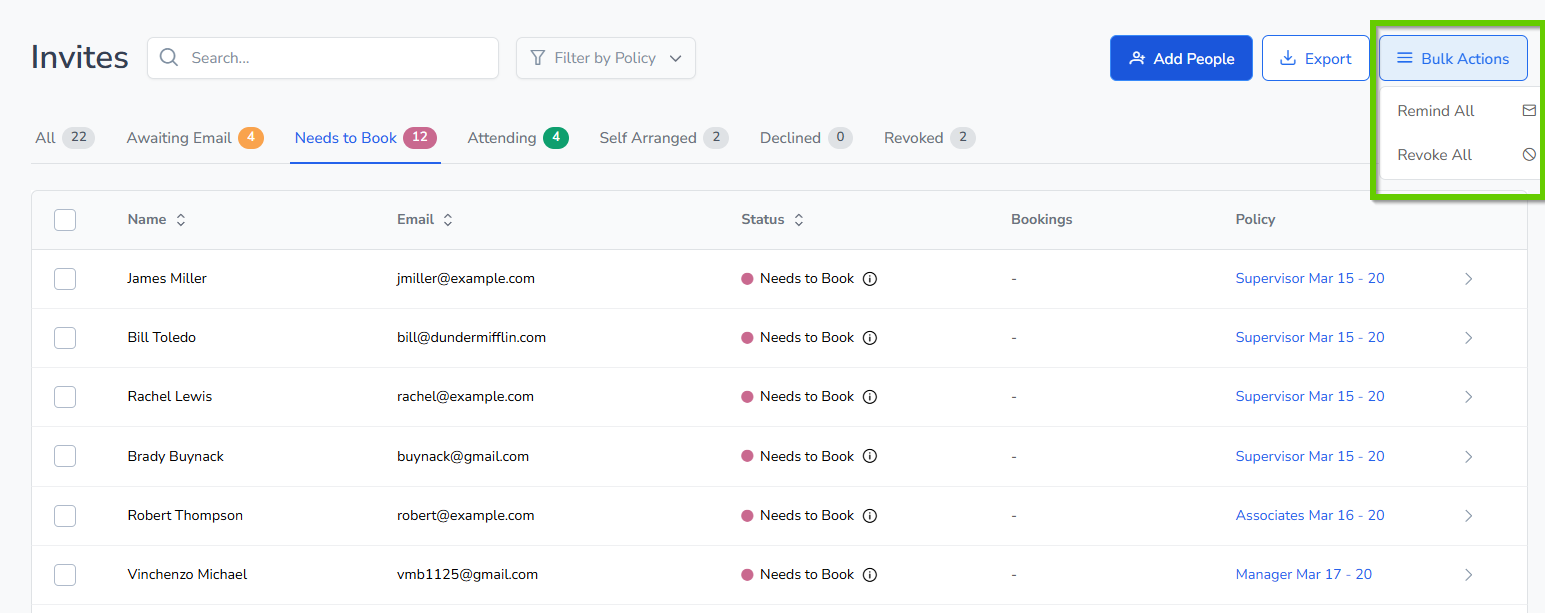
In the TempoTrip system, you can easily send the Initial Event Invite email or an Event Reminder email to travelers based on their status with just one click. Here are the two key statuses you need to know:
Awaiting Email: This status indicates that the traveler is waiting for the Initial Invite.
Needs to Book: This status means the traveler has received the Initial Invite and is eligible to receive a Reminder email.
When you click on the "Invite All" or "Remind All" buttons, the TempoTrip system will recognize the filter you have applied in the Trip/Invites dashboard. Emails will only be sent to travelers that match the current filter criteria.
If you accidentally click on the button, don’t worry! A prompt will appear asking you to confirm the send or cancel it, giving you peace of mind.
Other Dashboard Invite Bulk Actions
In addition to sending invites and reminders, you can perform several bulk actions on the dashboard. Here’s how:
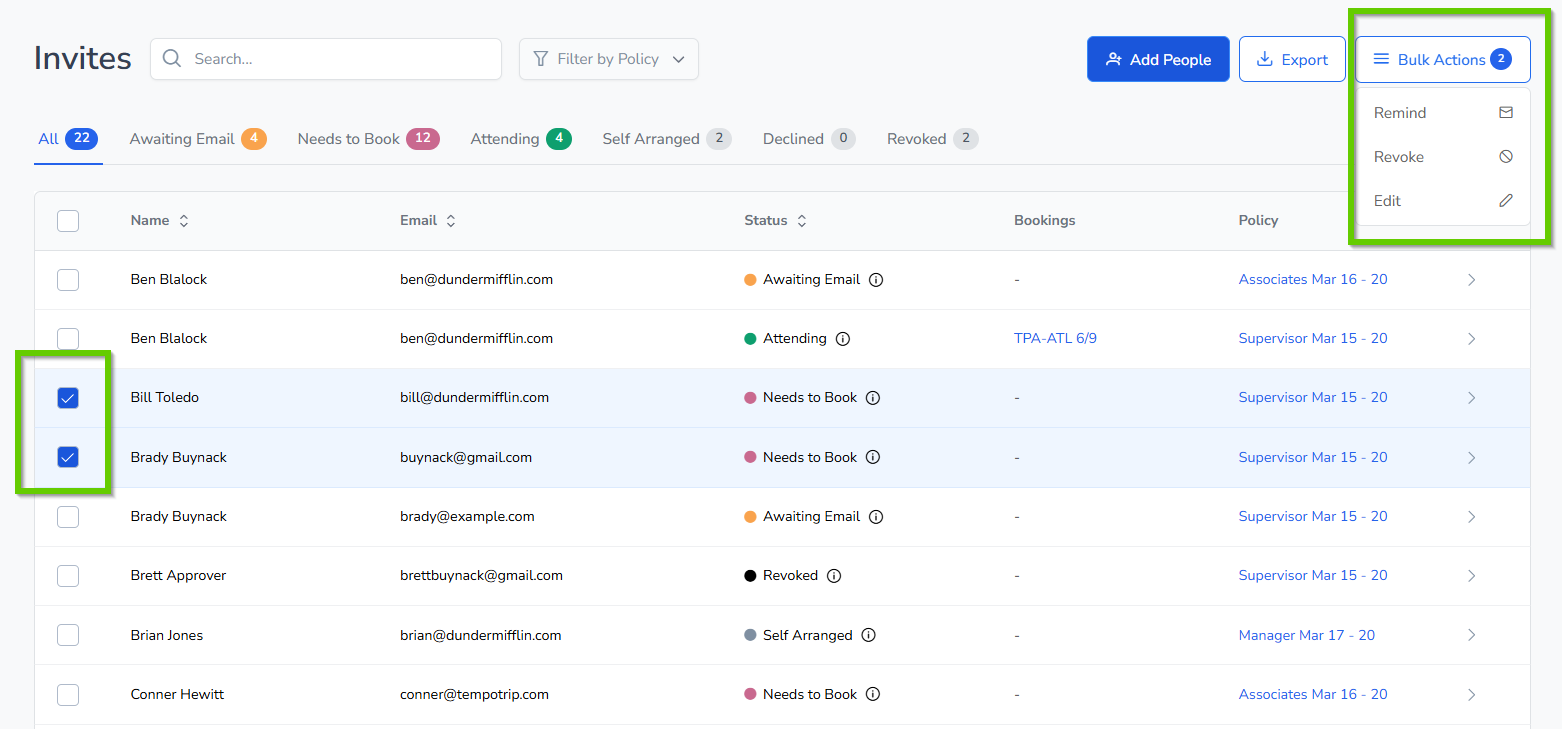
Filter by Status or Policies: Use the left-hand checkboxes to multi-select travelers, then choose a bulk action.
Available Bulk Actions
Invite: Send the initial Email Invite to all users with the status of Awaiting Email. This is useful when invites are held back while adding travelers to the event.
Remind: If the Initial Email Invite was sent and the status changed to Needs to Book, this action sends a reminder email.
Revoke: This action revokes the Email invite and disables the traveler booking link. Note that revoking does not delete the traveler from the event.
Delete: This action removes the traveler from the event. However, a traveler in the Attending status cannot be deleted.
Edit: Use this action to change travelers in bulk from one policy to another or to modify other statuses.
Understanding Status-Based Actions
Each status has specific actions that can be taken:
Awaiting Email: Can be Invited or Deleted. Revoking is not an option since no email has been sent.
Needs to Book: Can be Revoked. Deletion can occur after revocation, which invalidates the Email Invite Booking Link.
Revoke Status: Can be Deleted or Edited.
Self-Arranged Status: This status is manually changed when travelers book themselves outside of TempoTrip. It can be Deleted or Revoked.
Attending Status: No actions can be taken. Since a booking is made, the invite status cannot be Deleted, Revoked, Emailed, or Reminded. Please note that cancellation is not currently a bulk action and must be done individually.
If you attempt to select invites for actions that cannot be completed based on the filter, a message box will appear to notify you to change your selection.
Editing Trip Invites
To edit trip invites, simply filter the invites and select the Edit option. This will allow you to change the Status and/or the Policy, as permitted.
We hope this guide helps you navigate the event invite process in TempoTrip with ease! If you have any questions or need further assistance, feel free to reach out to our support team.