System Emails & Notifications
This document outlines the various types of emails sent to travelers through the TempoTrip system. It provides a detailed description of each email type, including initial invites, reminders, cancellations, and approval requests. Understanding these communications is essential for both travelers and administrators to ensure a smooth travel experience.
Types of Emails Sent to Travelers
The TempoTrip system sends several types of emails to travelers, including:
Initial Invite to Meeting/Event
Reminder Email for Meeting/Event
Cancelled Trip Notification
Denied Trip Notification
Revoked Invite Notification
Trip Approval Request
Note: TempoTrip does not send out a booked or ticketed itinerary. This is assumed to be provided by the Agency or Company.
Initial Meeting Invite
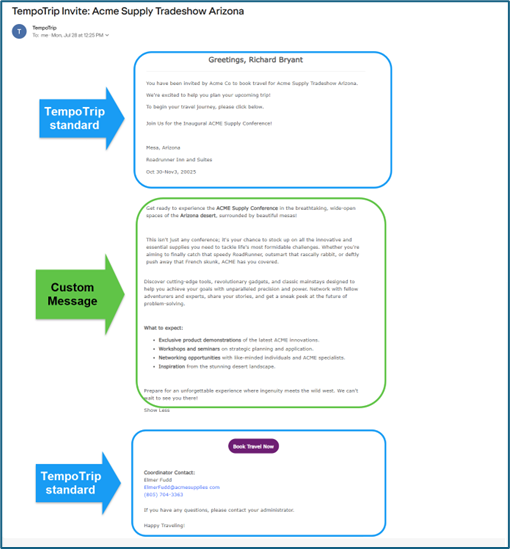
The initial meeting invite is sent to the traveler and includes the following:
The items highlighted in blue are standard TempoTrip items.
The items highlighted in green represent the custom message set up in the policy.
Meeting Reminder Email
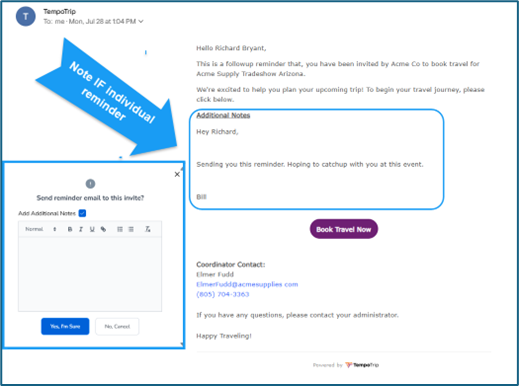
The meeting reminder email is also sent to the traveler and contains:
The item noted in blue is from individual reminders.
All other content in the reminder is standard from TempoTrip.
Note: Custom text invites are not included in the reminder.
Revoked Event Invite
This email is sent to the traveler when an event invite has been revoked.
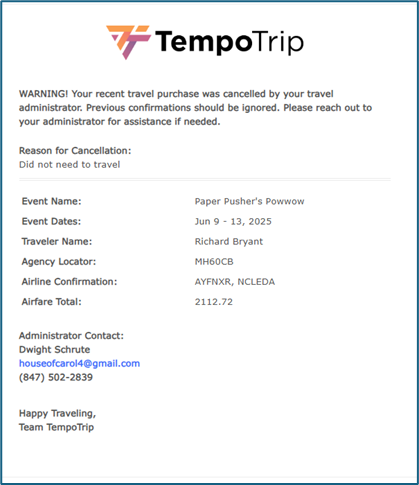
Cancelled Trip Notification
This email is sent to the traveler when a trip has been cancelled.
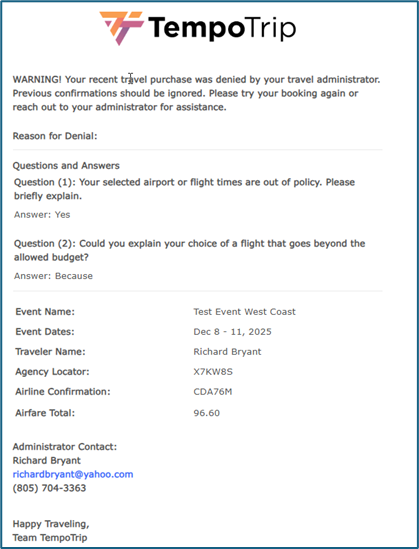
Trip Denied by Approver
This email is sent to the traveler when their trip request has been denied by an approver.
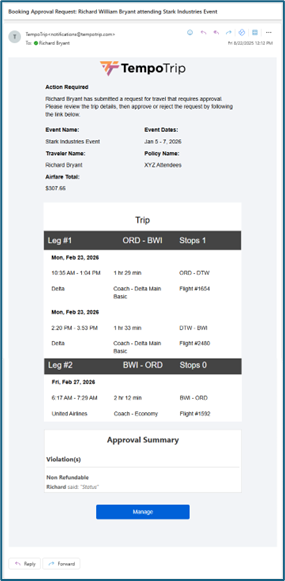
Trip Approval Request
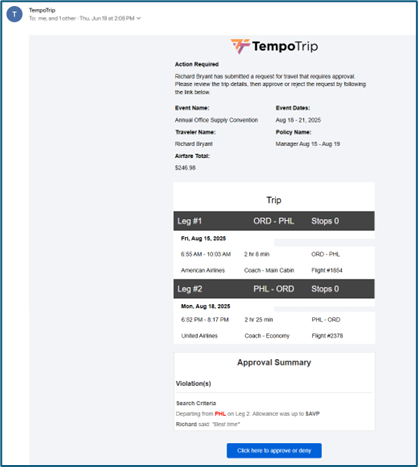
This email is sent to the Company Admin Approver when a trip needs to be approved. The process is as follows:
The admin will click on the "Manage" button, which will redirect them to the TempoTrip Trips Dashboard to view all pending approvals for that user.
To view the details of the trip, the admin should click on the right arrow located on the right side of the row.
Finally, the admin can click on either the "Approve" or "Deny" button to finalize their decision.