
People (Profiled Users) Dashboard
This document provides a comprehensive guide to manually adding company employees or importing them in bulk within the TempoTrip system. It outlines the necessary steps to ensure that traveler profiles are created efficiently and effectively.
Adding Company Employees & Travelers
Manual Addition of Employees
To add company employees individually, follow these steps:
Click on the People section in the navigation menu.
To manually add a traveler profile, click the Add Person button in the top-right corner of the screen.
The Add Travel input box will appear. Please fill in the required fields: First Name, Last Name, Email, and Role. The option to Send Welcome email is selected by default.

Bulk Import of Employee Profiles
For bulk profile import, follow these instructions:
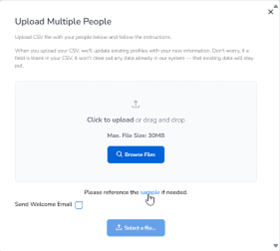
Click on the Import button.
Use the sample CSV file available from TempoTrip for formatting guidance.
Viewing and Managing Employee & Traveler Profiles
Viewing Company People Profile List
Once travelers are added through manual entry or bulk import, you can view the company people profile list by:
Clicking on the People section.
Searching for Employee Profiles
To search for specific employee profiles:
Type your search criteria in the Search Box and click Search.
Editing or Deleting Profiles
To view, edit, or delete profiles:
Click on the three dots located on the right-hand side of the profile entry.
Select either Edit to modify the profile or Delete to remove it.
Important Note
For policy control over approval requirements, it is essential to first add at least one Company Admin in the People section. This admin can then be selected as the Approver.