
MFA Step-by-Step Enrollment Process
Welcome to our guide on enrolling in Multi-Factor Authentication (MFA) for your TempoTrip account! This added layer of security helps protect your personal information and ensures that only you can access your account. Follow the steps below to get started!
Step-by-Step Enrollment Process
1. Log into TempoTrip
Begin by logging into your TempoTrip account using your username and password.
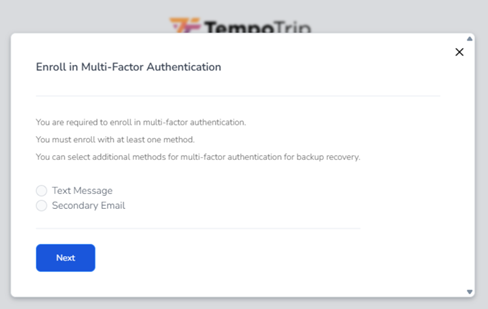
2. Multi-Factor Authentication Enrollment
Once logged in, you will see the Multi-Factor Authentication screen. Here, you can choose your preferred method of enrollment: either Text/SMS or Email.
3. Provide Contact Information
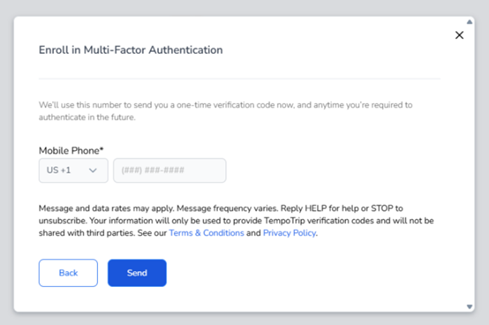
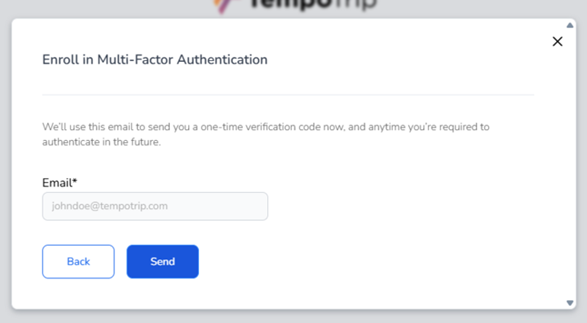
If you select Text/SMS, please enter your mobile phone number. If you choose Email, enter your email address. After entering your information, click on the Send button.
4. Verify Your Code
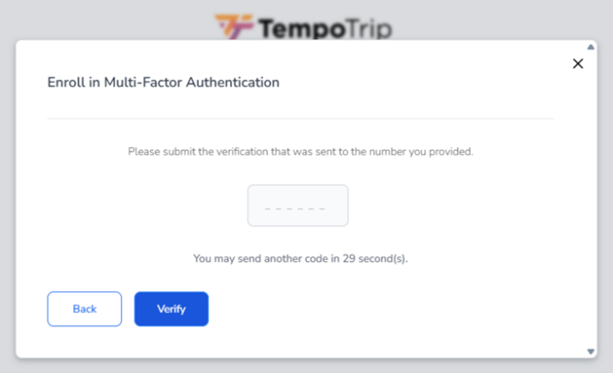
You will receive a verification code via your chosen method. Input this code into the designated field and click Verify.
5. Save Your Recovery Code
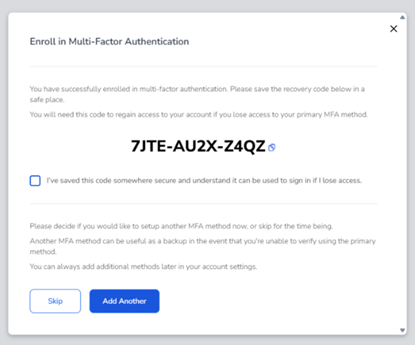
After verification, you will receive a Recovery Code. It’s crucial to save this code in a secure location that you will remember. This code will help you recover access to your account if you lose access to your MFA methods.
6. Confirm Code Storage
Make sure to check the box indicating that you have saved the Recovery Code somewhere secure.
7. Add Another MFA Method (Optional)
If you wish to add another MFA method, click on Add Another. For example, if you initially added Text/SMS and now want to add Email, you can do so here. If you prefer to skip adding another method, simply click on Skip.
8. Completion Confirmation
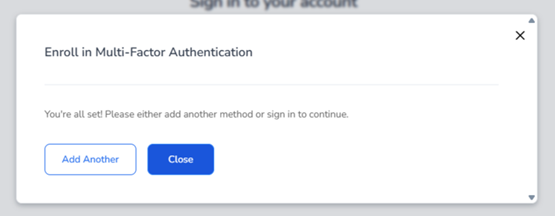
A confirmation box will appear, letting you know that you are all set. Click Close to finish the enrollment process.
Logging In After Enrollment
First Login Prompt
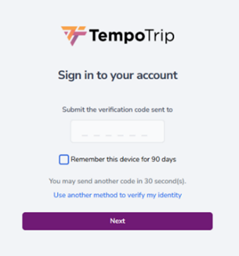
The next time you log into your TempoTrip account, you will be prompted to enter your username, password, and the verification code.
Remember This Device
If you check the box for Remember this device for 90 days, you won’t be prompted for the verification code during that period. If you do not check this option, you will need to enter the verification code each time you log in.
Inputting the Verification Code
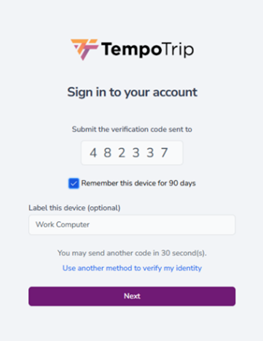
Enter the code sent to your Text or Email. You can also name the method/device if you wish (this is optional).
Using Alternative Verification Methods
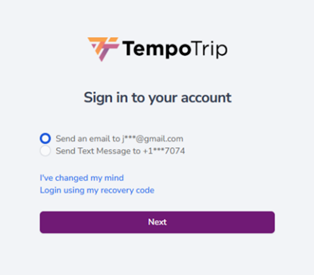
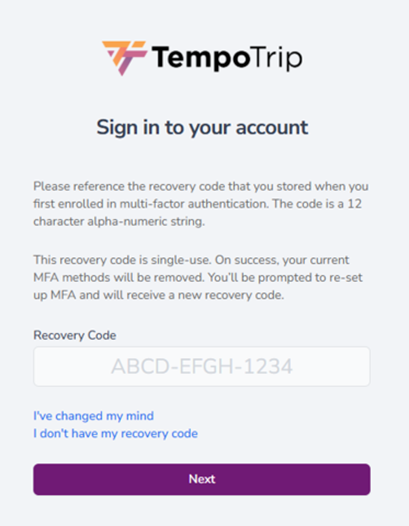
If you want to use a different method to verify your identity, click on the Use another method to verify my identity link. This option is available if you have set up two or more methods. You can also choose to stop the process or log in using your recovery code.
What to Do If You Can't Access Your MFA Methods
Using Your Recovery Code
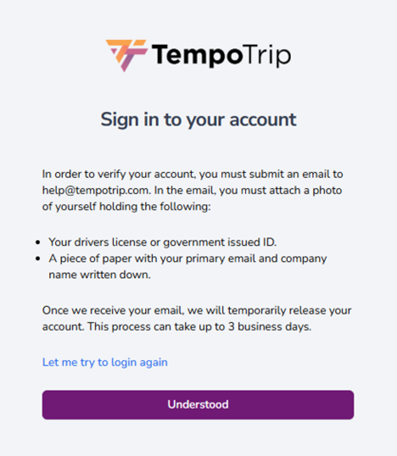
If you are unable to use your text or email methods and do not have your recovery code, click on I don’t have my recovery code. You will then see a prompt that allows you to either try again or provide the requested information to email help@tempotrip.com for assistance.
Thank you for taking the time to secure your TempoTrip account with Multi-Factor Authentication! If you have any questions or need further assistance, feel free to reach out to our support team.